Photoshop Elements: How to make outer glow only
Miscellaneous Forums/General Discussion/Photoshop Elements: How to make outer glow only
Hi, I'm getting stuck on something that must be obvious. I want to export and outer glow ONLY round a sprite. Not the sprite, just the glow.
In Photoshop elements I can add a glow easy enough but if I hide the layer to hide the sprite the glow disappears. How can I hide the sprite but not the glow so that I can export it? Thanks! :-)
You can add a 'Solid Color' layer effect in black and make the background layer black as well... that sort of does it :)
I'm not sure about elements, but in full fat Photoshop...
In the layers pallette or the blending options window - there are two opacity sliders. One is the main opacity, and the other is FILL opacity. If you take the fill down to zero, the main body of the sprite will disappear but the effects (ie stroke and glow) will remain.
fredborg, thanks but I need the background to be transparent.
mrtricks, sounds perfect except in Elements I can only see an main opacity :-(
Take a Cut of the original without glow, and XOR it with the new one.
1) Create a layer and plop something in it
2) Go to Layer > Layer Style > Outer Glow and create the glow (Layer is in the main tool bar)
3) Go to the layer side bar (the small window that shows thumbnails of all your layers)
4) Right click on your layer where it says "Effects" or "Outer Glow"
5) Select "Create Layer"
Voila! (Photoshop CS2, not elements)
H&K: Don't see a XOR option.
Indiepath: sounds fab, but fails at step 4 in Elements. It doesn't say Effects or Outer Glow, sob :-(
There's another way of doing it in Photoshop - I assume Elements will be the same.
Select your layer, and open up its layer style dialog.
Set up your Outer Glow as normal.
Click on "Blending Options" at the top-left.
Under "Advanced Blending", change "Fill Opacity" to 0%.
The layer detail will vanish, but the layer effects remain.
[edit] Or to put it another way.... "What mrtricks said."
bah Elements pees me off, it's totally hobbled! It doesn't have Blending Options. When I first got it I was horrified to find out I could only make off white glows and not any other colours. Then I got a load of free plug ins and that was sorted.
I had read that elements was fine for most things and only really advanced uses would want the full version with it's obscure fancy tricks, but that's bull as I seem to want all those things on a regular bases and I'm not even an artist!
Well... done a bit of googling.
At the top of the 'layers' palette, does it look like this?:

Ignore the highlighted bit - The Fill Opacity layer setting seems to be located there instead.
Thanks, but it's not like that on elements SOB. VERY similar but no Fill. And that little F is by each layer not down the bottom. Oh and no brush icon. In fact lots is missing.
Save the one with glow, save the one without glow, loadthem into Bmax, Xor them, save the result, loadit into photshop
! Sure, that would work if I could be bothered to code it.
;)
Had another look around. Seems that PS Elements does not have a Fill Opacity option, which is weird/stupid.
Source: http://www.photoshopelementsuser.com/forum/showthread.php?t=21959&highlight=%22fill+opacity%22
You should probably sign up and ask there! Might be an easy way of doing it.
thanks GfK. I may just have to upgrade at some point, but the price tag puts me off right now...I got the artist to do it in the end, but I just wanted to know how for future reference...
Hi,
Sorry but I've only the French version so I have to translate ...
If I understand, you want to export a png with transparent of an outer glow. I will try to explain in my poor english.
So You need first make a selection of a round sprite and keep the selection, fill it, next make your outer glow and you need to simplify your layer (right button on layer with the sprite and select "simplify")
Photoshop can take a long time to simplify if the glow is complex :-)
You will just have now to delete the sprite inside the selection to keep only the outer glow
you can see a picture of an example on my PC :
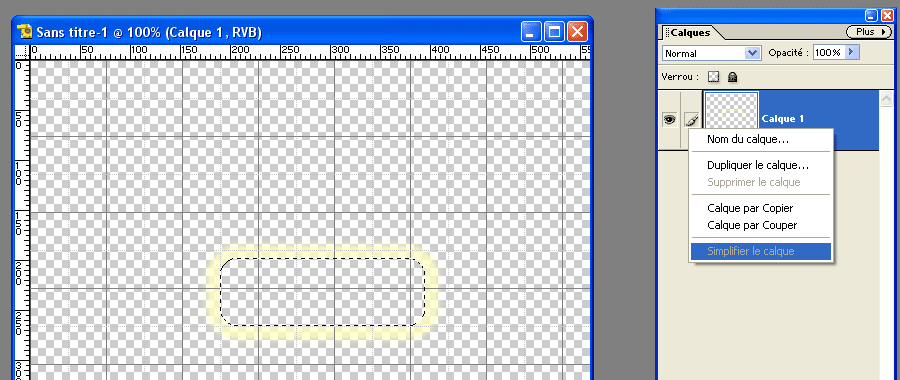
I hope it help
P.S. If you have always the free plug ins to make non white glow, can you give me it's name.
dwarf: Excellent thanks! That work. I knew it should be possible. I wasn't able to delete the sprite before without the glow going but simplify fixed it!
AS for free plug ins, I got tons off this site:
http://graphicssoft.about.com/od/photoshopstyles/Free_Photoshop_Layer_Style_Effects.htmbut the glow one was part of a CD:
http://www.photoshopelementsuser.com/forum/showthread.php?t=8682&highlight=missing+styles
except that it was going to take too long to send to me (I needed it in a hurry), so she was going to email it to me (the whole CD) but it was too big, then she ended up just sending me the glows for free, which was nice! :-)
Copy the sprite to a second layer.
Do the glow.
Create an empty layer below the sprite.
Select sprite layer.
Go to the selection menu and select layer transparency. The sprite should be outlined.
Merge sprite layer down with empty layer.
Effects will now be baked into layer.
Select clear from menu mext to file menu to clear the sprite from the middle of the glow.
Voila!
sswift. thx, similar principle to dwarf's technique. However, in PS Elements "select layer transparency" does not exist. so I used the magic want to click the transparent area then did inverse selection. Clear on the Edit menu is for the undo history, I used delete and it worked.
Grey: Thanks for the links, I read them when I have two minutes. Now I spend all my free time on my game (make with your framework) and hope release it soon.
Photoshop Elements is a very good software and easy but with so much limit function. It's sad but I don't have a lot of money for always buying complet version :-( . Anyway we need to learn little tricks.
dwarf: Good luck with your game! Yeah we have to learn how to use PE tricks, but maybe one day soon we can both afford the full version!