3D Studio Max AA Edge to White problem
Miscellaneous Forums/General Discussion/3D Studio Max AA Edge to White problem
Hi, it seems that when 3D studio Max anti-aliases the edges of a render on a transparent background, it don't anti-alias to "pure" transparent, it renders to transparent white. This is noticeable as a faint transparent white outline on the final output when saved as png. esp when viewed over a grey background.
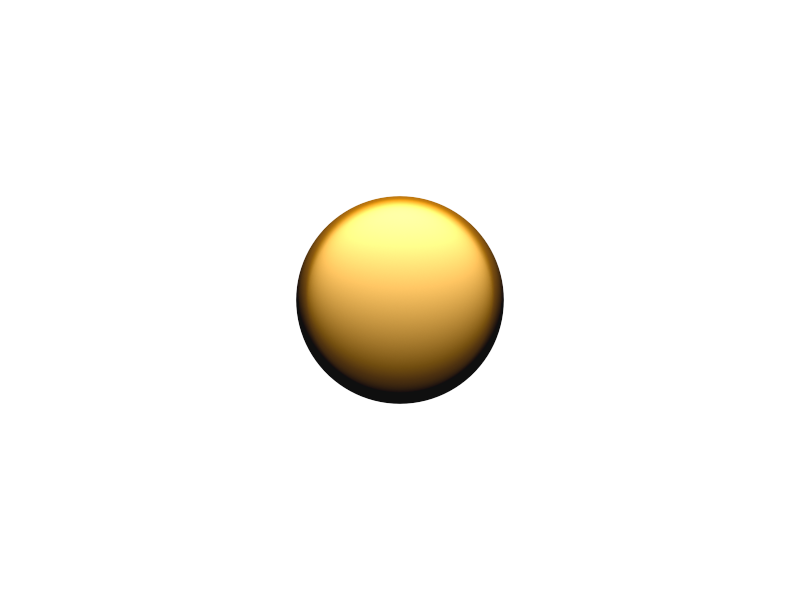
Here is a png with the problem (don't view it in IE, download it and view in photoshop or gimp and dropper the transparent bit, notice how the colour values are whiter than the edge of the coin which is gold.
I tried defringe.exe on the images but it doesn't work.
Any ideas please. I'm DESPERATE! Thanks
In your 'Customize' drop down menu at the top bar select 'preferences'...then select the 'render' tab and check ' don't anti-alias against background'.
That simple, and a powerful time saver for many different reasons when outputting to paint programs.
You can choose to render your objects with split-alpha, at least with TGA files. Then you'll have a mask, and an image.
"Don't anti-alias against background" makes jaggies against background though.
Tried rendering against a black background?
"Note: You must be rendering against a black background if Don’t Antialias Against Background is turned on. "
youre meant to use 'don't anti-alias against background' if youre making sprites etc., as Hujiklo says.
but not anti-aliasing to background gives unpleasant jagged edge. Seems we can get a white halo or black one, maybe a gey one would be OK if we could figure out how to do it...
maybe a gey one would be OK if we could figure out how to do it...
Lol@gey!
but not anti-aliasing to background gives unpleasant jagged edge.
So render it at double or quadruple the resolution you want it to be and resize it. The image filtering will smooth the edges for you.
great idea from Gabriel, that will work just fine.
interesting idea Gabriel. Could be a bit memory hungry on 14x50 frame anims though...
something like this should do the trick:
Strict

Function FixPNG(inurl:Object,outurl:Object)
	Local pix:TPixmap
	Local x,y,w,h,c,g,t,xx,yy
	pix=LoadPixmap(inurl)
	w=pix.width
	h=pix.height
' first pass remove white alpha
	For y=0 Until h
		For x=0 Until w
			c=ReadPixel(pix,x,y)
			g=255-((c Shr 24)&255)
			If g
				c=c-(g Shl 16)-(g Shl 8)-g
				WritePixel pix,x,y,c
			EndIf
		Next
	Next
' second pass fix edges
	For y=1 To h-2
		For x=1 To w-2
			c=ReadPixel(pix,x,y)
			If c&$ff000000=0
				t=0
				For yy=-1 To 1
					For xx=-1 To 1
						c=ReadPixel(pix,x+xx,y+yy)
						If c And $ffffff
							t=((t And $fefefe) Shr 1)+((c And $fefefe) Shr 1)
						EndIf
					Next
				Next
				WritePixel pix,x,y,t
			EndIf
		Next
	Next
	SavePixmapPNG pix,outurl,5
End Function

fixpng "coin.png","coin2.png"
wow that's pretty cool, let me check it out...
interesting, so it replaces the white alpha with black alpha (shape has a black outline now when placed on grey (looks a bit more natural now)). Is it possible to alter that code to have a mid grey alpha instead (i.e. 128)? I don't actually understand how it works...
You could have simply rendered to a grey background in Max or a black one...I suspect you have a light coloured background. Change it to Black and your problem will disappear.
Top 'Rendering' tab and choose 'environment'....set the background colour in there.
I tested the ouput on both black and white backgrounds - with ALPHABLEND it shouldn't have either black white or grey outline.
Weirdly if you test on a GREY background you can see the thin black outline...anyway the code is certainly useful because black is better than white in most cases.
I was thinking that was natural result of grey+brown as in the grey background is highlighting the shading that is actually present, what with it not being that evident (thin black highlight) on a white background at all.
yeah it's pretty strange why would a white background show LESS black outline, you'd think it would show up more.
So there is no way to transparent anti-alias to grey with your code then?
Here ya go. Must be worthy of a free copy of your framework, eh? ;)

I think it's an optical illusion, my code should be removing the white so there is no bias introduced from any "antialias with" color. For example say you have a pixel with quarter its area red and the other three quarters transparent, its still 255,0,0 rgb with alpha=64 where as apps like photoshop and it sounds like 3dstudio max (i've had no such problems with lightwave) will average in the 75% "background color" so with white black or grey you will still get the pure red being modified when for textures, you want it to stay 255,0,0.
Topics: Premultiplied Alpha/Fringes
Most of the 3D apps output a premultiplied alpha which is due to performance reasons in earlier days for compositing. Pro tools can deal with it out of the box, for the rest you'll have to defringe if needed.
Qube, wow that's excellent how did you manage it? Did you skim off an outer layer? Please tell...
Skidracer: Yeah that's the problem, that 3DMax basically includes a background colour instead of leaving it pure red but transparent also. Your code replaces the white with black. I guess the only solution is to actually replace the edge alpha colour with a colour the same as 1-2 pixels inside the shape (i.e. gold on some bits and black on other bits of the coin) Maybe that's what qube did...
taumel: I think we tried the premultiplied alpha thing, but I'll take another look.
Just render to whatever colour background you want - problem solved. Darkish grey in this instance.
Grey, pretty much yes, I took off the anti-aliased pixels 1px skim and applied the image to a transparent backdrop :)
Hujiklo: I want game objrcts that can be over *any* colour background (from white to black), thus alas problem not solved.
Qube: Ah I see, interesting now for some code to do it...
@Grey
? Sure you tried, that's why you've got the problem... :O)
As i said you'll have to defringe the picture. This either can be done by certain plugins/functions for photoshop or you'll have to process the image by code.
Maybe this helps you understanding the problem a bit more http://en.wikipedia.org/wiki/User:Lkesteloot/premultiplied_alpha
oops, here is modified code that also undoes the effects of the premultiply as described by Taumel,
Strict


Function FixPNG(inurl:Object,outurl:Object)
	Local pix:TPixmap
	Local x,y,w,h,c,g,t,xx,yy
	Local aa,rr,gg,bb
	pix=LoadPixmap(inurl)
	w=pix.width
	h=pix.height
' first pass remove white alpha and unmultiply rgb
	For y=0 Until h
		For x=0 Until w
			c=ReadPixel(pix,x,y)
			aa=(c Shr 24)&255
			g=255-aa
			If g And aa
				rr=((((c Shr 16)&255)-g)*255)/aa
				gg=((((c Shr 8)&255)-g)*255)/aa
				bb=((((c)&255)-g)*255)/aa
				c=(aa Shl 24)|(rr Shl 16)|(gg Shl 8)|bb
				WritePixel pix,x,y,c
			EndIf
		Next
	Next
' second pass fix edges
	For y=1 To h-2
		For x=1 To w-2
			c=ReadPixel(pix,x,y)
			If c&$ff000000=0
				t=0
				For yy=-1 To 1
					For xx=-1 To 1
						c=ReadPixel(pix,x+xx,y+yy)
						If c And $ffffff
							t=((t And $fefefe) Shr 1)+((c And $fefefe) Shr 1)
						EndIf
					Next
				Next
				WritePixel pix,x,y,t
			EndIf
		Next
	Next
	SavePixmapPNG pix,outurl,5
End Function
sounds very interesting.
Hi,
What is completely baffling about this is that in Poser, I can render any object and it comes antialiased to what ever is in the background, this includes transparency.
All my Poser renders are beautiful and clean, yet 3DS Max doesnt seem to be able to do this.
IPete2.
I wonder if it depends on the material you've applied to the object aswell.... *ponder*
Ipete2: It seems like it must be to do with Pre-multiply Alpha based on what I've read now and what is said over here:
http://forums.indiegamer.com/showthread.php?p=116605#post116605